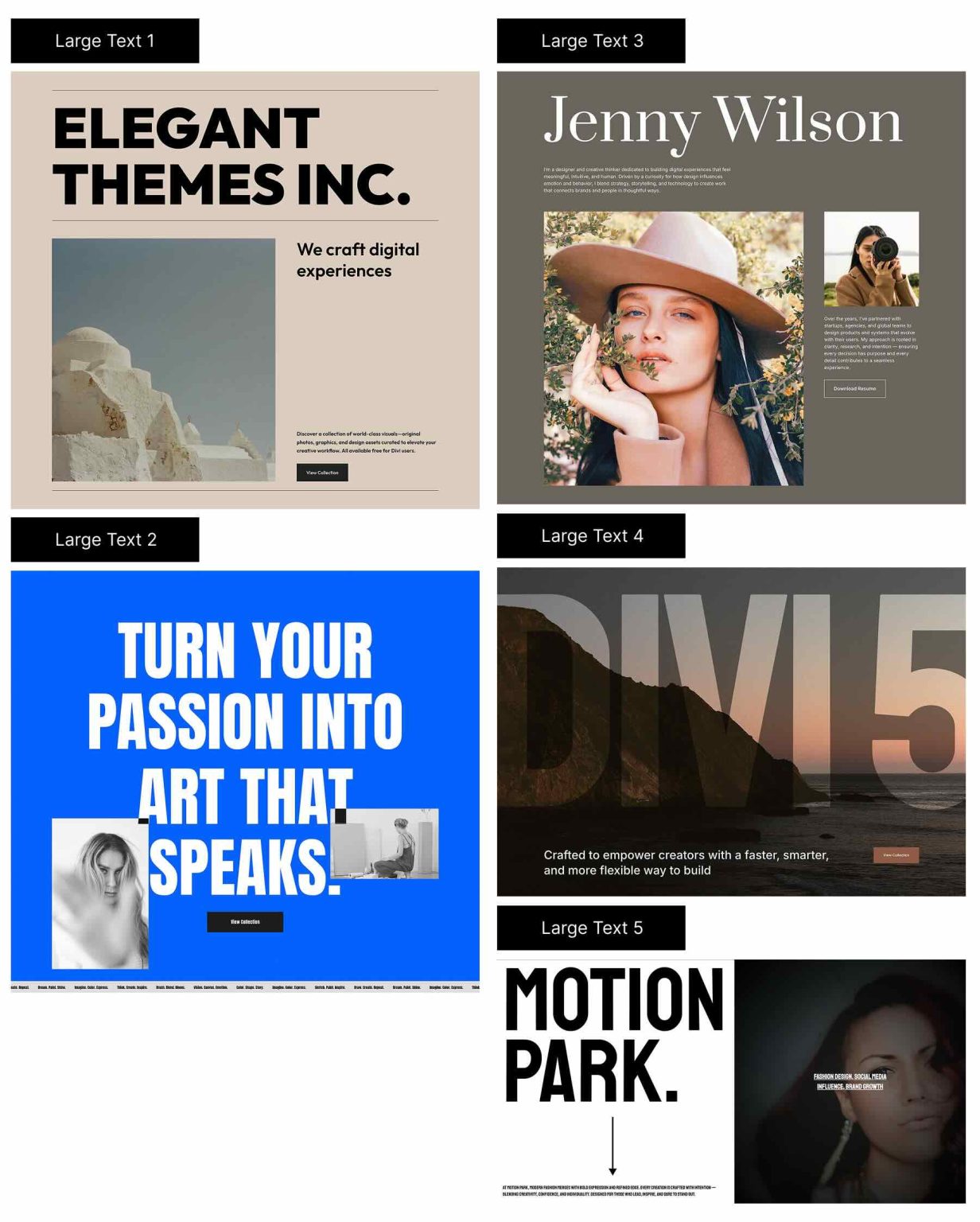
Building big headline sections and hero sections that feel purposeful, well-balanced, and consistent with your brand is made easy with Divi 5. Five stylish large text sections are included in this free bundle; each is designed with a strong typography, a clear hierarchy, and adaptable layouts that allow you to quickly add your own content. Replace the text and images, drop one onto any site, and you are set to go. No additional setup is necessary.
Here is a brief overview of each of the pack's five large text sections. The download can be found lower down the article.
Get free access to all five sections. Add them to any page in the Visual Builder after importing them into your Divi Library.
There are five large text section exports and one file with all of the designs after you download and unzip the file. Styled — Large Text Sections (5) → Vibrant hero-style layouts that may be used just as is or modified using your own presets and Design Variables. They feature elegant typography, image pairings, and great contrast. Ideal beginning places for feature highlights, testimonials, editorial-style hero sections, landing site headers, and portfolio introductions. Styled — Large Text Section (All) → All designs are imported into your Divi Library.

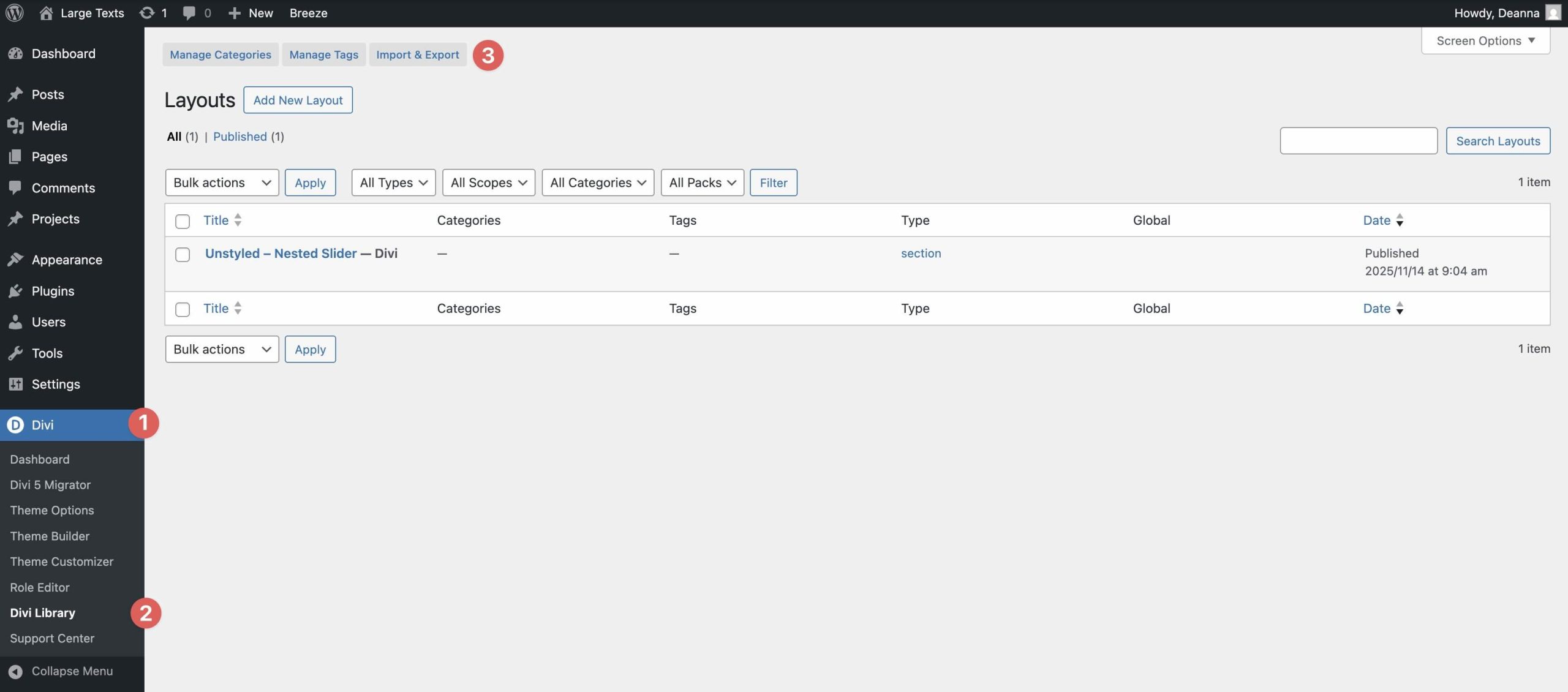
We will import and then add a part to a page, so have your download folder close at hand. 1. Add Parts to the Divi Library. Navigate to Divi Library. In the upper portion of your screen, select Import & Export.
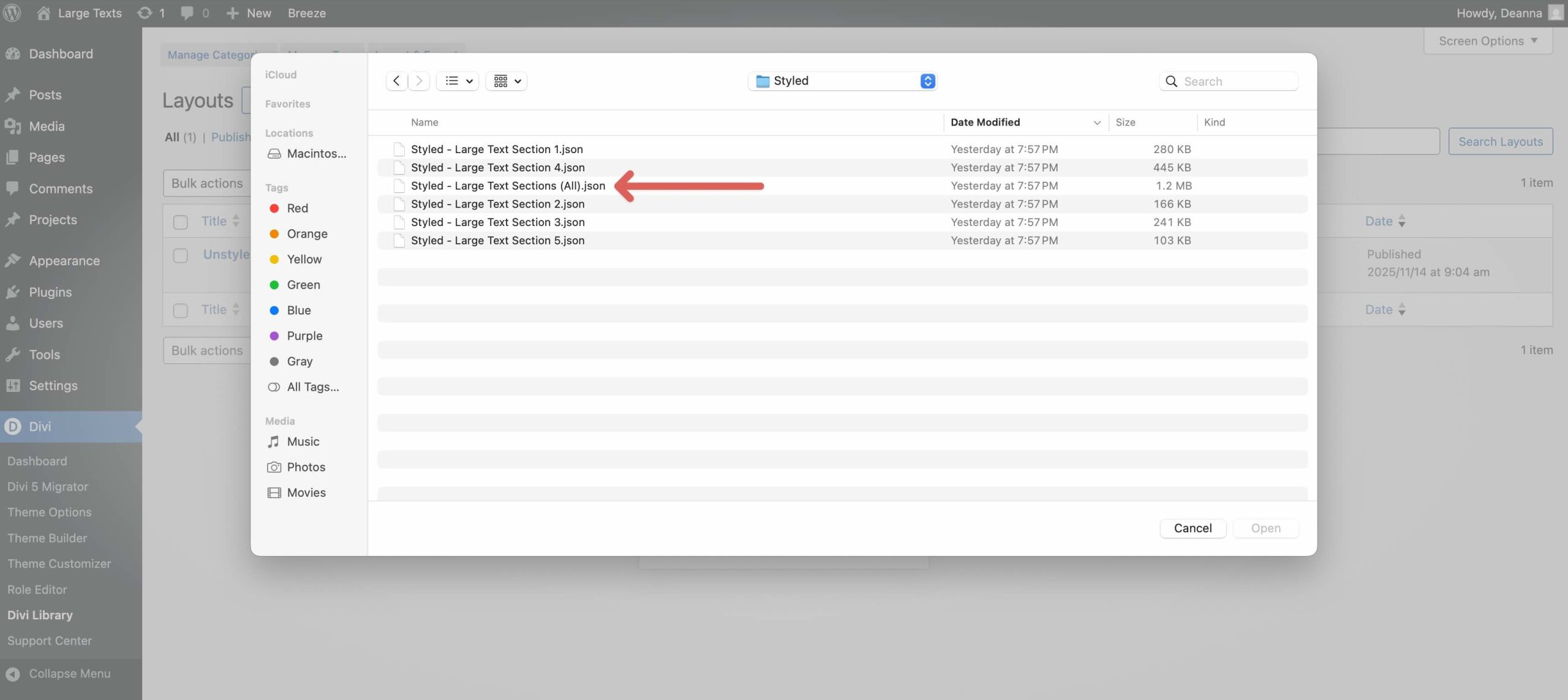
In the Import & Export Layouts modal, switch to the Import tab, then click Choose File and select your JSON.
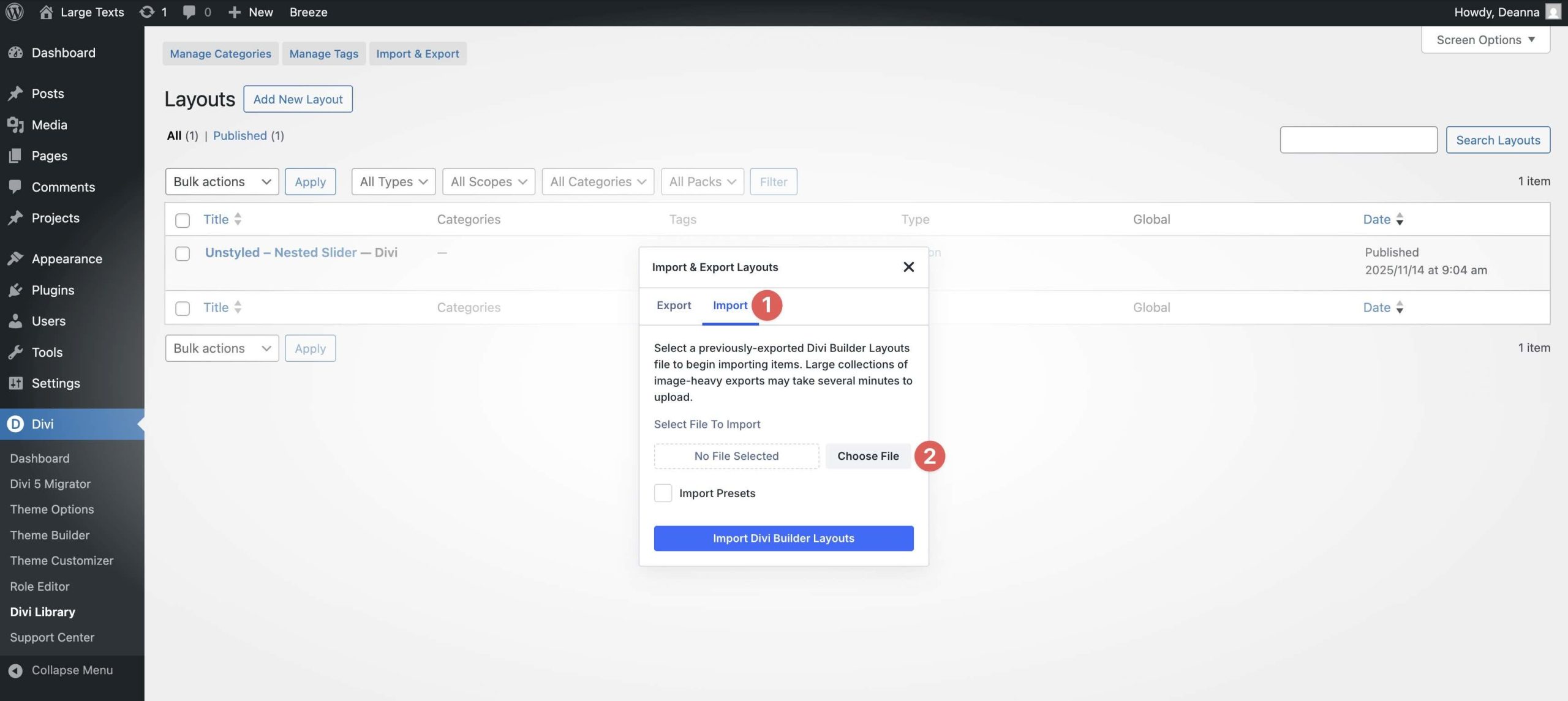
Choose any Large Text layout JSON you want to use, then click Import Divi Builder Layouts.
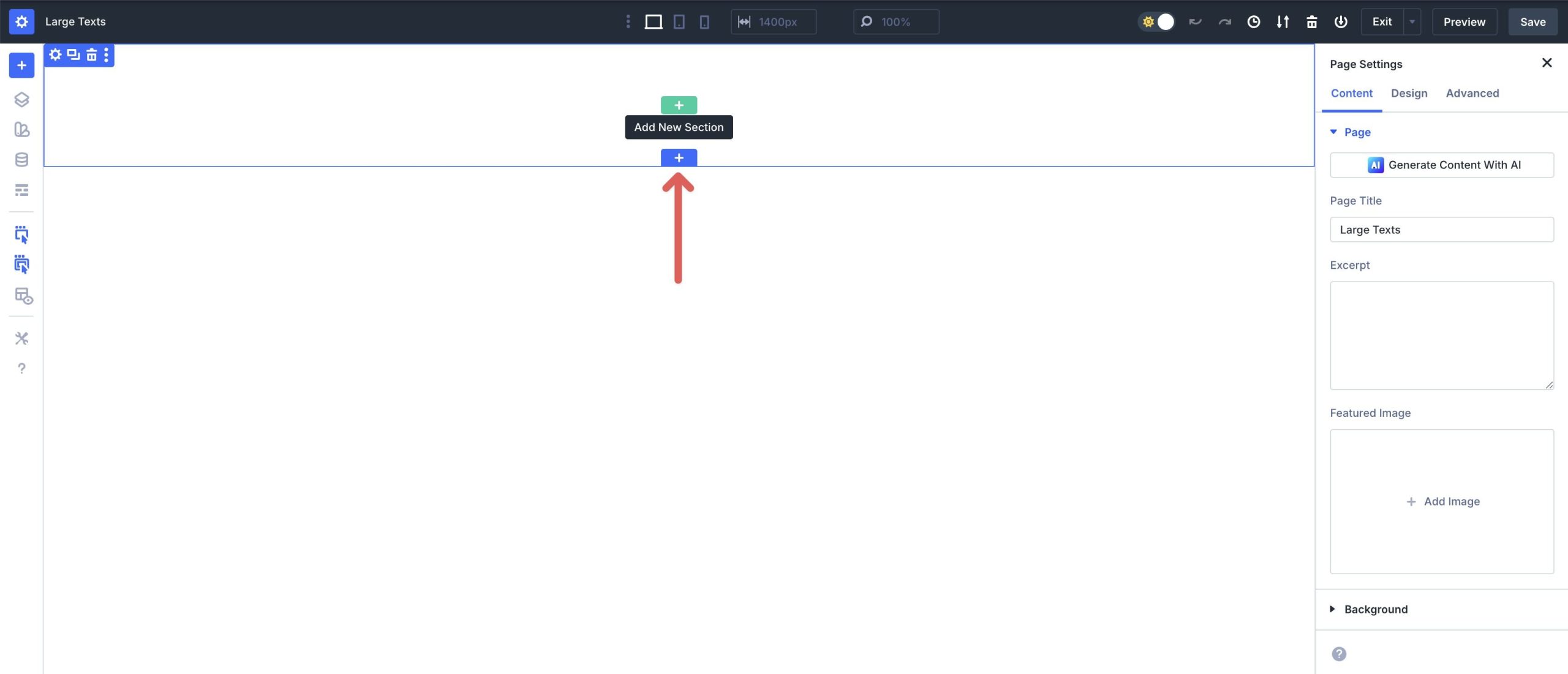
Open a page in the Visual Builder and add a new Section.
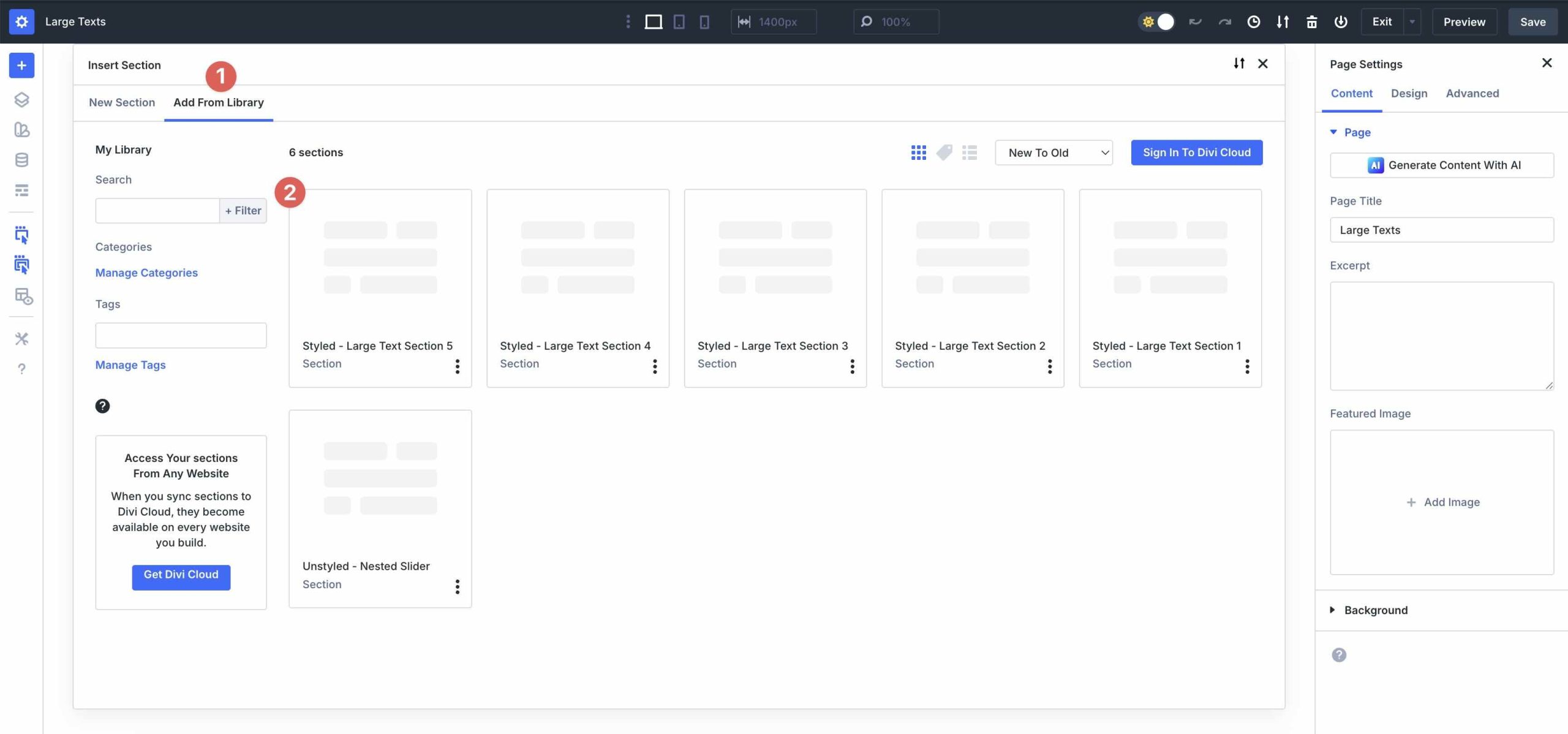
In the Insert Section modal, click Add From Library and select a Large Text layout.
Click Use This Section at the end.
It only takes a few clicks to replace the placeholder information once the Section is on the page. To make real-time changes to the title, subheading, body, or button text, click directly on any Text Module.
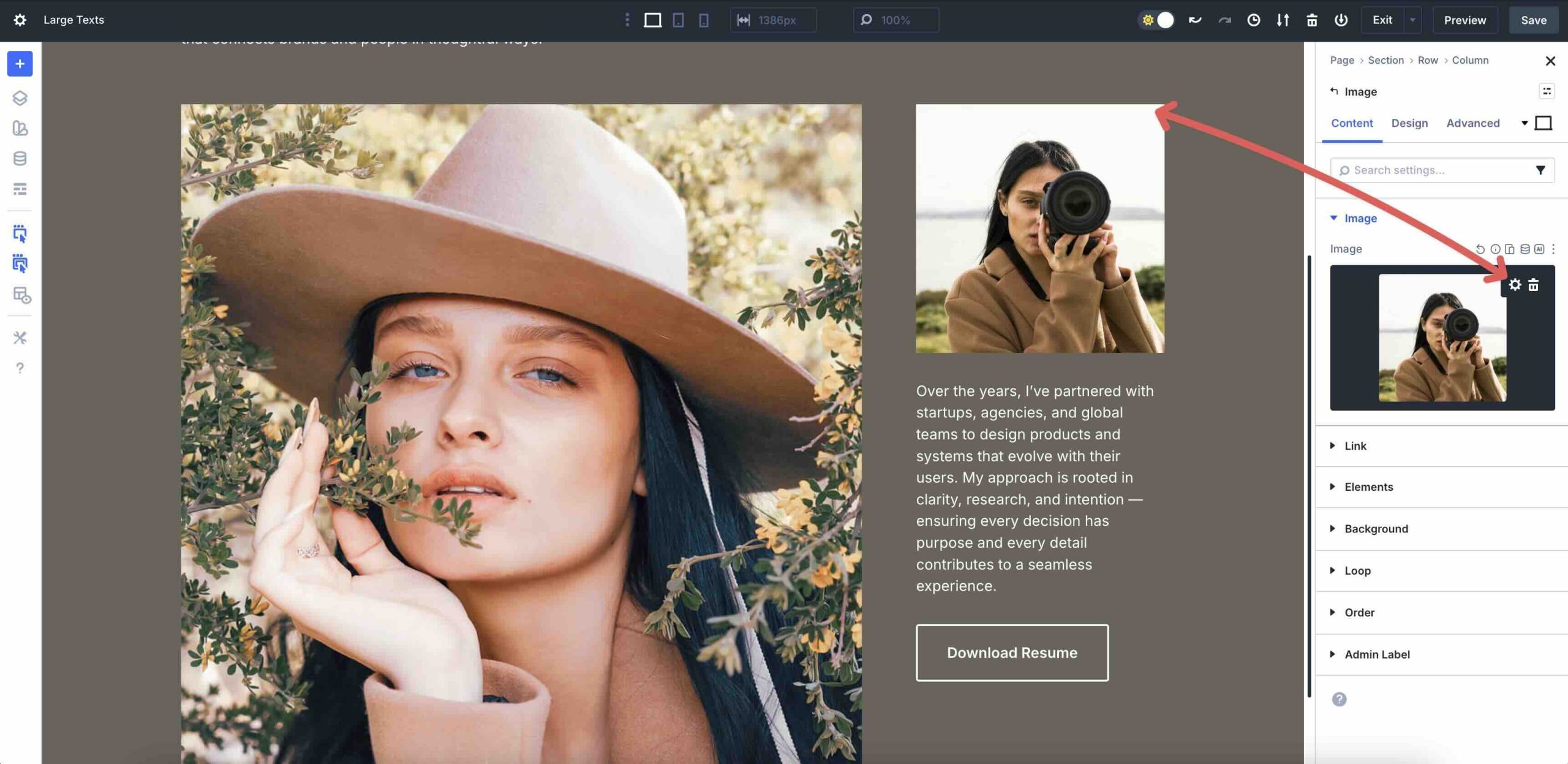
Go to the Content tab of that module and select the Image options to replace pictures. Select an image from your Media Library or click Image → Upload.
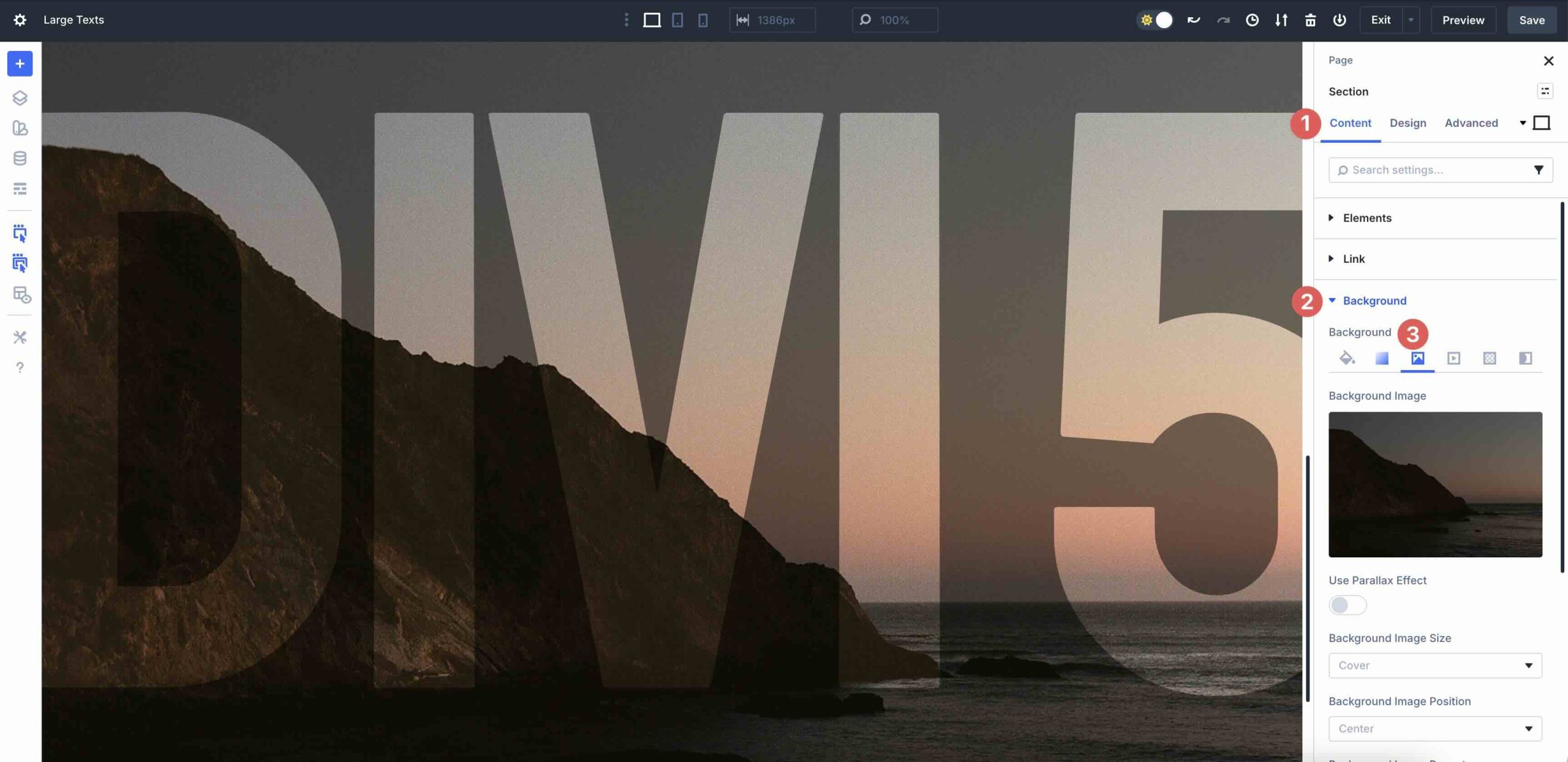
For Background Images or Gradients, go to Section settings → Content tab → Background tab and drop in your own image or change Gradient Stops.
Buttons and CTAs are already styled, just update the link and text.
You can alter the colors and styles to fit your brand even if each section is already created for you. To alter the layout without destroying the design, follow these easy steps. Navigate to the Design tab in any of the Section's Text or Heading modules to alter the fonts. To alter the Heading Level, Font, Font Style, Text Alignment, or Text Color with a few clicks, expand the Text or Heading dropdown menu.
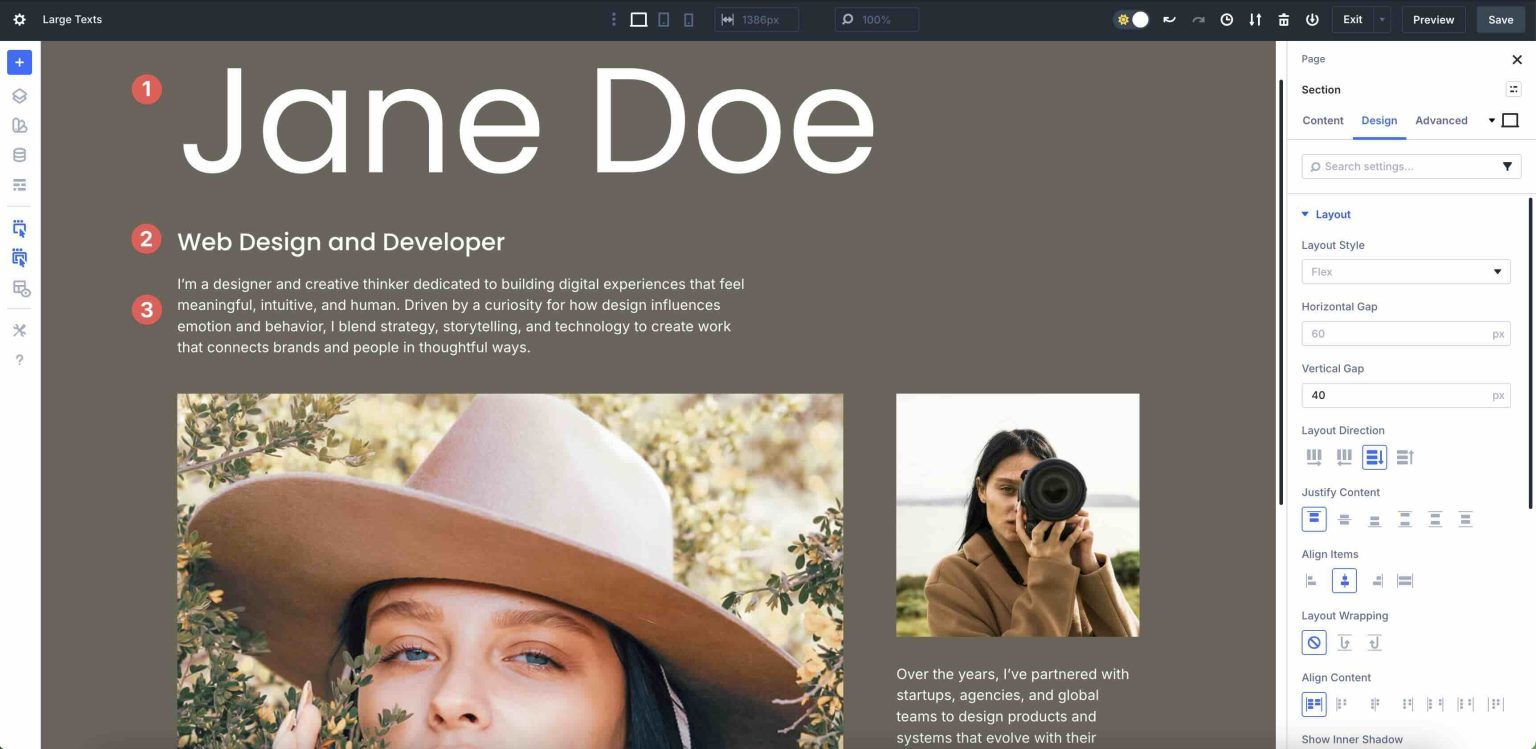
To adjust sizing, modify the width and max-width properties to increase or decrease the content to suit your preferences.Use Divi’s Layout settings to adjust Flex properties, such as Horizontal and Vertical Gap, Layout Direction, or Layout Wrapping.Add effects, such as text shadows, animations, or scroll effects for extra flair.
Advice for Creating Successful Large Text Designs
Little decisions add up. Here are some easy ways to maintain the impact and clarity of your lengthy text passages.
Make sure your main headline and supporting lines are easily distinguished by using size, weight, and spacing. To avoid overpowering the layout on smaller displays, keep heads brief and relegate supporting information to smaller text.
Make sure that there is sufficient contrast for legibility when putting huge text over solid colors, gradients, or images. To make your message readable and accessible, use Divi 5's Background settings to apply overlays or gradients behind text.
Keep your choice of font families and weights to a minimum. When too many styles are combined, the hero appears disorganized. To ensure that changes are uniform throughout the website, link your headers and body text to any Design Variables you use for fonts.
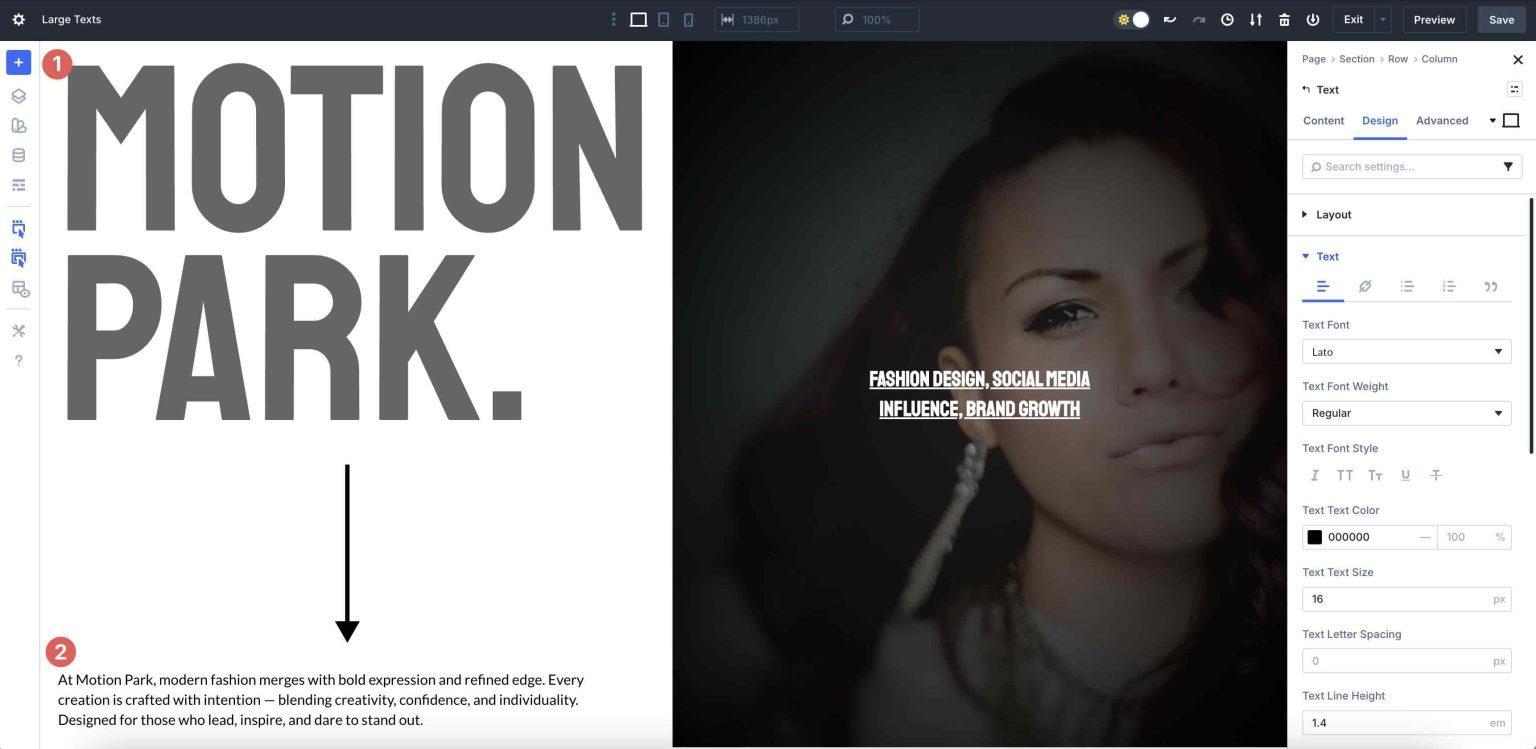
Ascertain if your layout is image-first or text-first, then adjust your design accordingly. Instead of competing with the message, use images to bolster it. To drive the eye through the design, align the focal points in your visuals with the text's direction.
Subtle hover or reveal effects are sufficient when using motion. Steer clear of frantic animations or excessive parallax behind lengthy text passages. On CTAs, think about using soft fades, slide-ins, or minimum hover states so that the motion enhances rather than detracts from the messaging.
Bold, production-ready hero designs that blend in perfectly with your current design system are offered by these five designed large text sections. Utilize them for editorial hero sections, feature highlights, portfolio introductions, and landing page headers. Then, continue to refine your design with Divi 5's cutting-edge features.