One of the best ways to draw in visitors, expand email lists, make offers, or direct them without overcrowding your home page is to use off-canvas popups. In the past, third-party plugins or custom code were needed to create them in Divi. Divi 5 makes all of that different. You can now create completely unique, native off-canvas popups right in the Visual Builder by combining Divi 5 Canvases with Interactions. You will discover how to leverage these two features to make stunning off-canvas popups in this post. Let we begin.
Canvases, a new system of independent workspaces that exist independently of your main page or post content, is introduced in Divi 5. You may build, arrange, and manage pieces without ever clogging your main layout by using them as design boards within the Visual Builder.
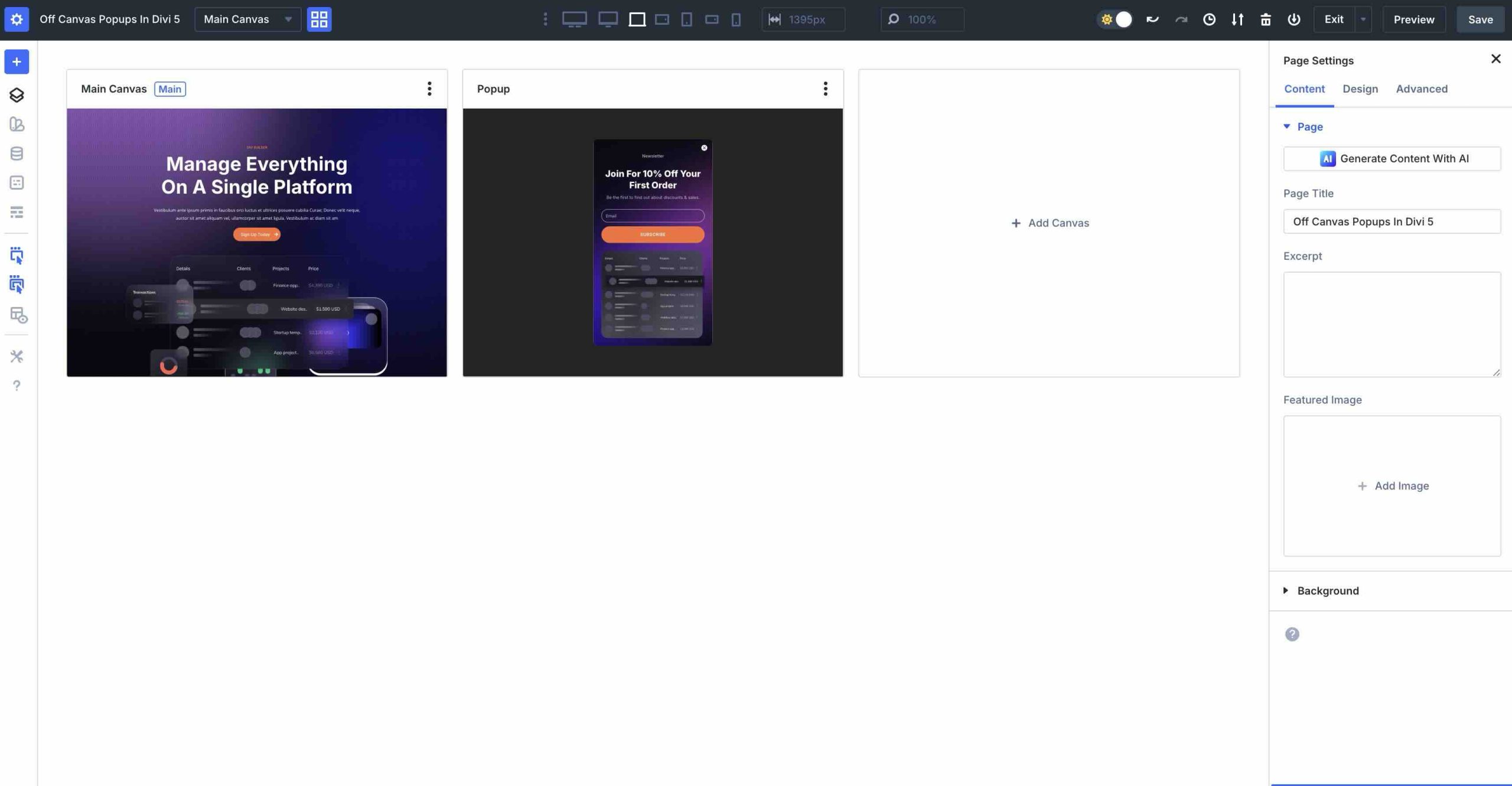
Every Divi page begins with a Main Canvas, on which you construct the page's main visible content, such as the body and hero content. Detachable Canvases are where things start to get interesting. When you are editing in the Visual Builder, these are entirely distinct workspaces that do not show up on the main page. They are ideal for creating off-canvas components that remain hidden until you want them to show up, such as sidebars, cookie banners, popups, and slide-in menus.
Divi 5 offers two different kinds of detached canvases. Local Canvases are associated with a certain template, post, or page. They work well for special items that should not show up on the entire website or for one-time, page-specific popups. You can use Global Canvases on your whole website. When it comes to popups, you can utilize a global Canvas to design an exit-intent overlay, promotional slide-in, or newsletter signup once and then use it on all of your website's pages. Just make a single modification, and the entire website will update.
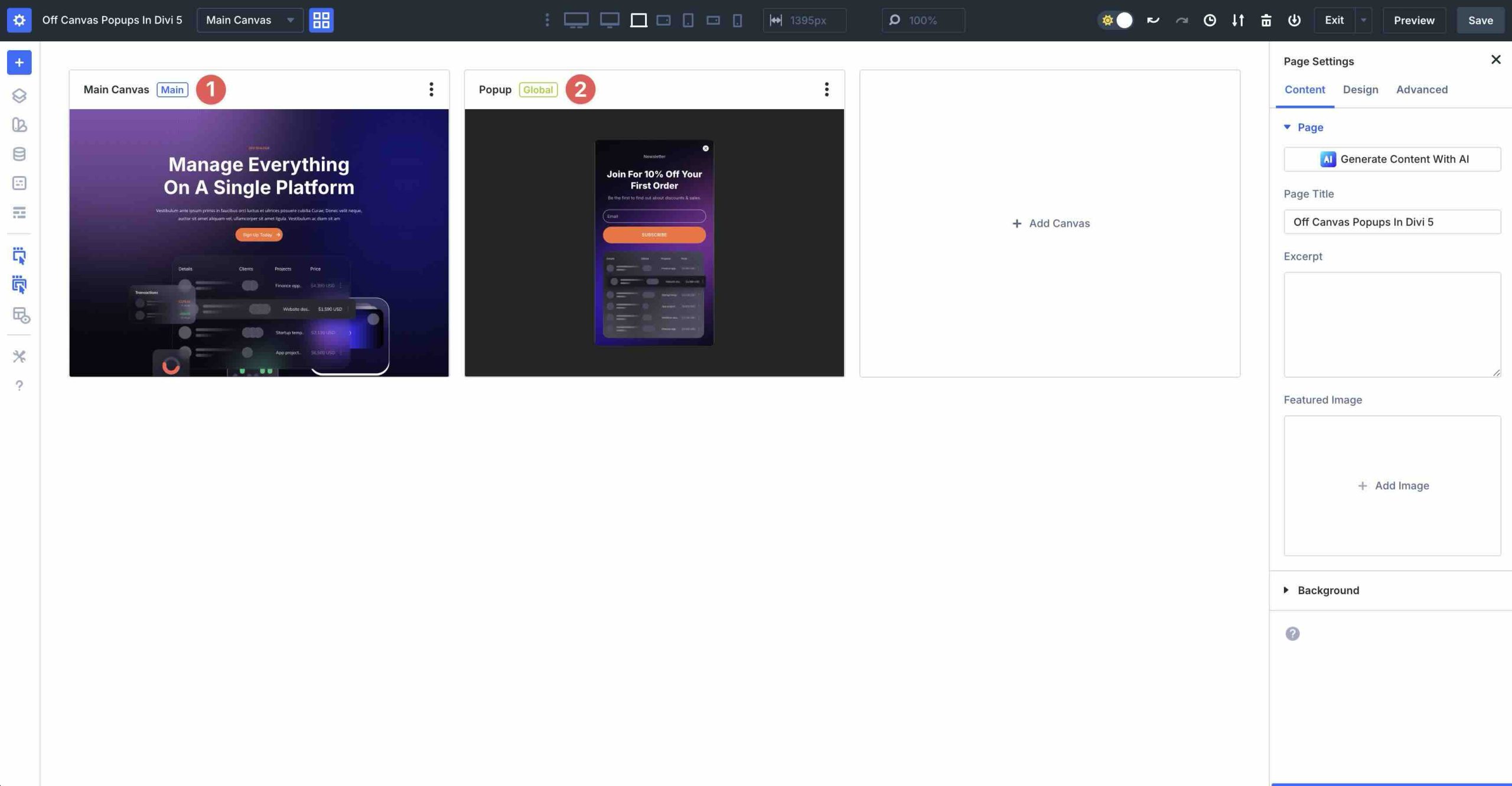
Your workspace is kept tidy in the Visual Builder by keeping your detachable canvases concealed and segregated. Divi, however, automatically adds their content to the front end when you use Interactions to target them.
This implies that popups only load and show up on the live site when activated, remaining entirely hidden in the Builder. Without the need for third-party plugins or special code, the outcome is smooth off-canvas behavior.
Canvases eliminate the headaches associated with creating popups in Divi.
Basically, Divi 5 Canvases make popups a native feature instead of a pain. After you have finished designing in a separate workspace, let Interactions dynamically bring it to life on the front end.
What Are They? With the help of the robust Divi 5 Interactions system, you can give any element on your page dynamic, user-driven behaviors. You can specify what initiates an action and what follows by using this feature, which is found directly on the Advanced tab of any module, column, row, or section.
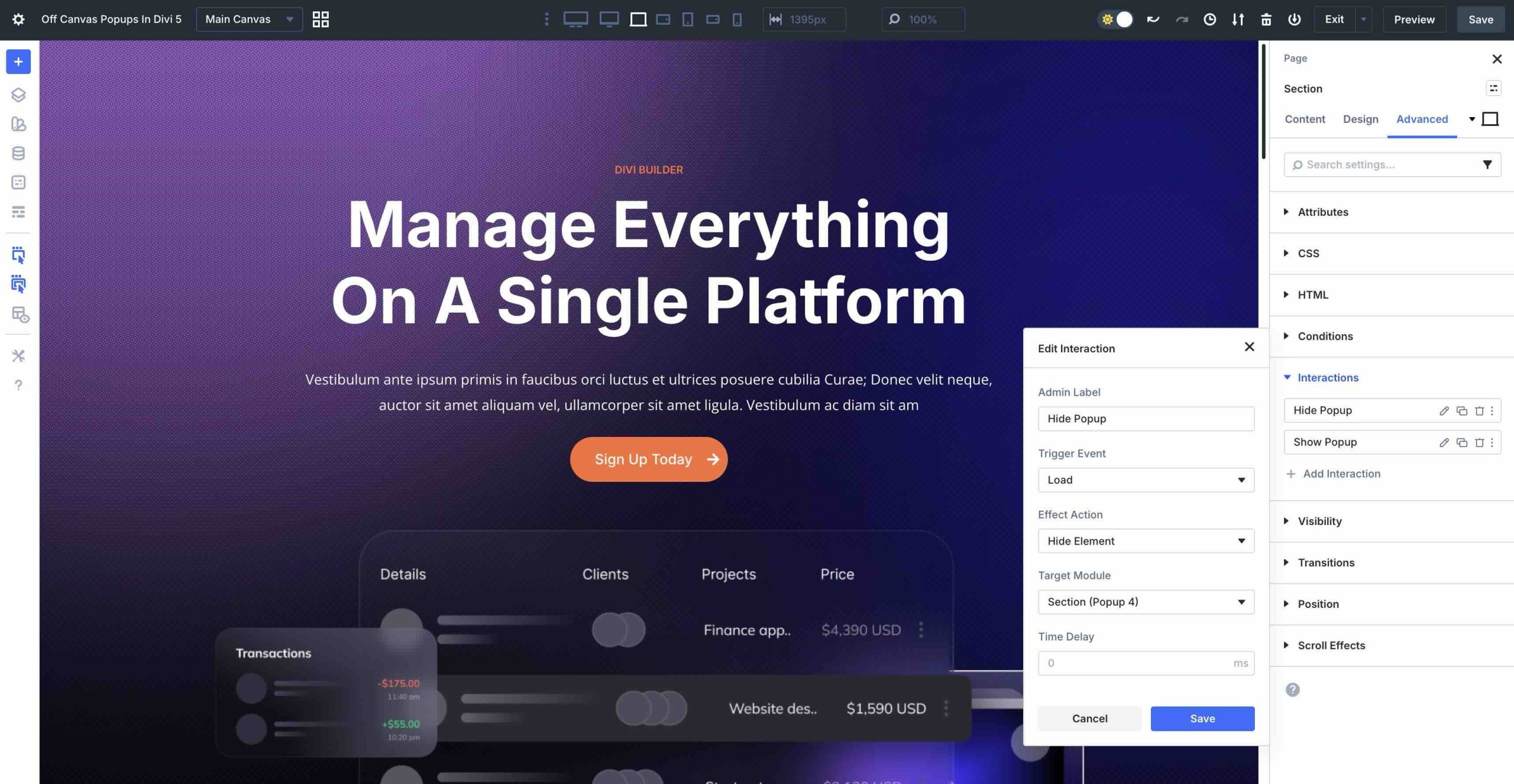
Fundamentally, each interaction has a straightforward three-part structure:
Because of this, interactions can be used for a wide range of tasks, including controlling off-canvas popups and modals as well as hover effects and scroll animations.
that correspond to actual user behavior is provided by Available Trigger Events in Divi 5. When making popups, you will need the following:
For layered, complex behavior, you can combine several interactions on the same or distinct items.
You can utilize a number of fundamental effects, especially for popups:
Since you can target elements on any detached canvas straight from the Main Canvas, Interactions are the ideal companion for Canvases. When the Interaction fires, Divi immediately adds the Canvas content to the front-end, maintaining a tidy workspace while providing smooth off-canvas functionality.
Now that you know how Canvases and Interactions function, let us apply what you have learned to create an off-canvas pop-up. We will use a prepared pop-up that our design team made to keep things simple. We will not walk through the pop-up's construction process. Rather, we will demonstrate how to create a Canvas, import a layout, then configure Interactions to activate it.
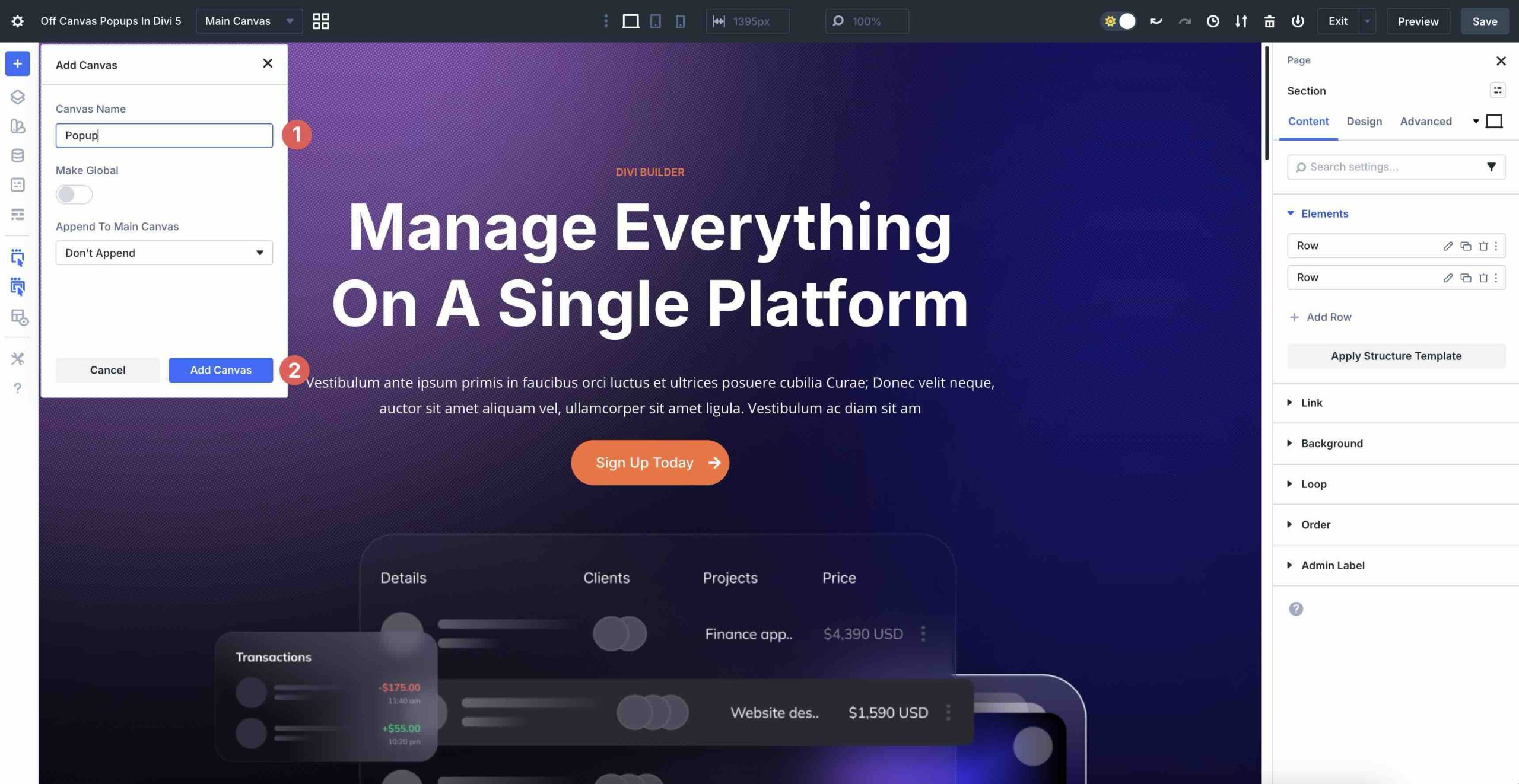
Next, select Add Canvas.
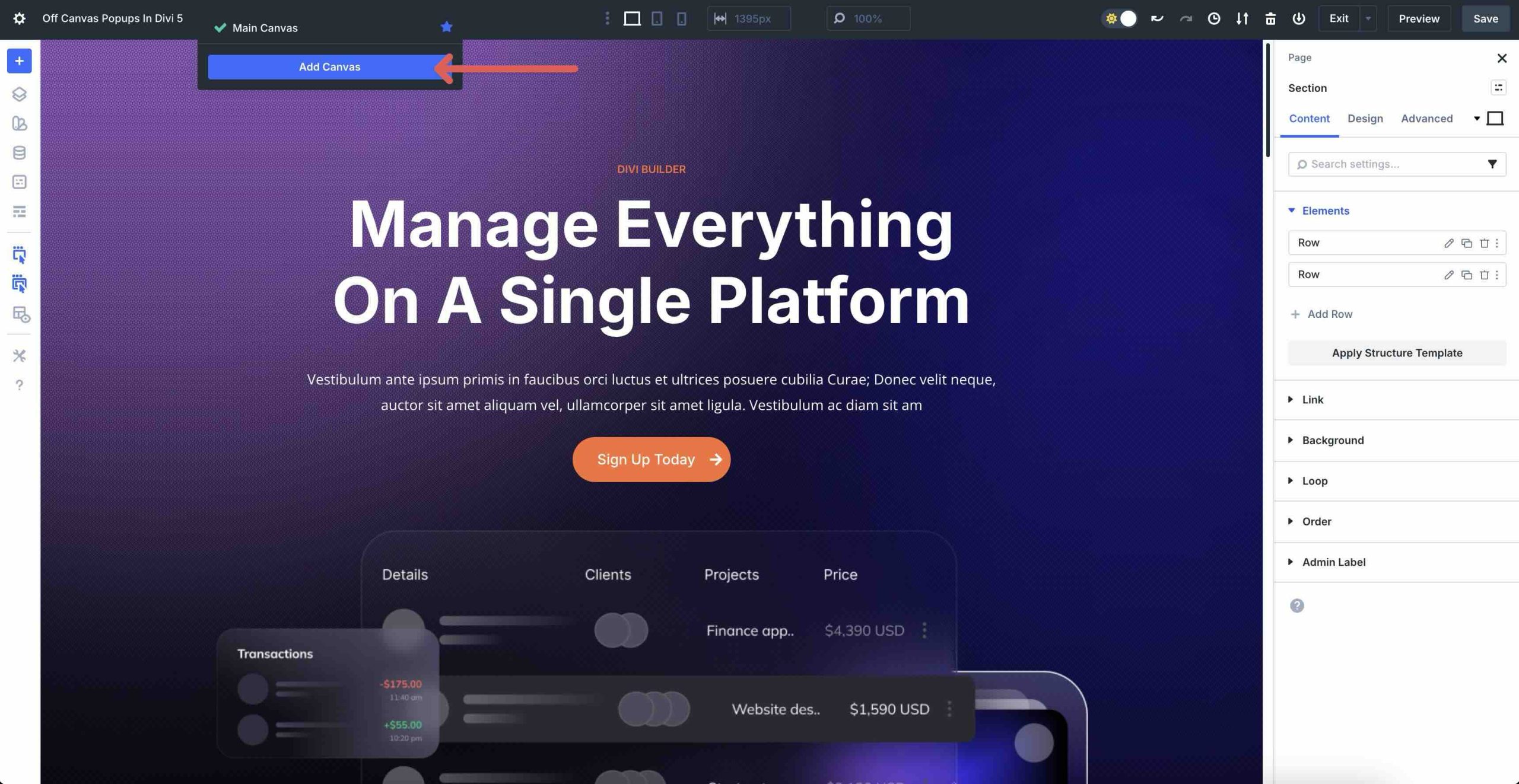
Click Add Canvas again after adding a canvas name.
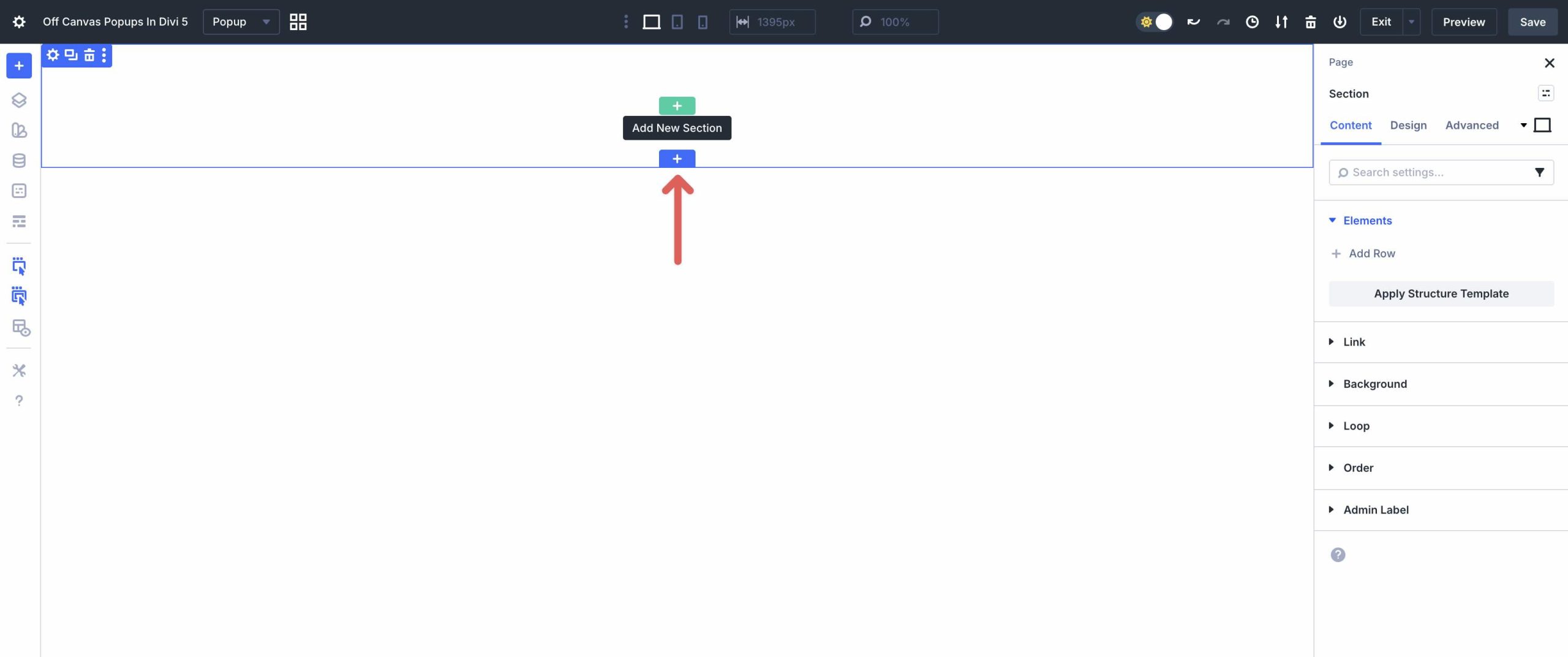
A new Builder canvas will open. Click the blue + icon to add a new section to the Canvas.
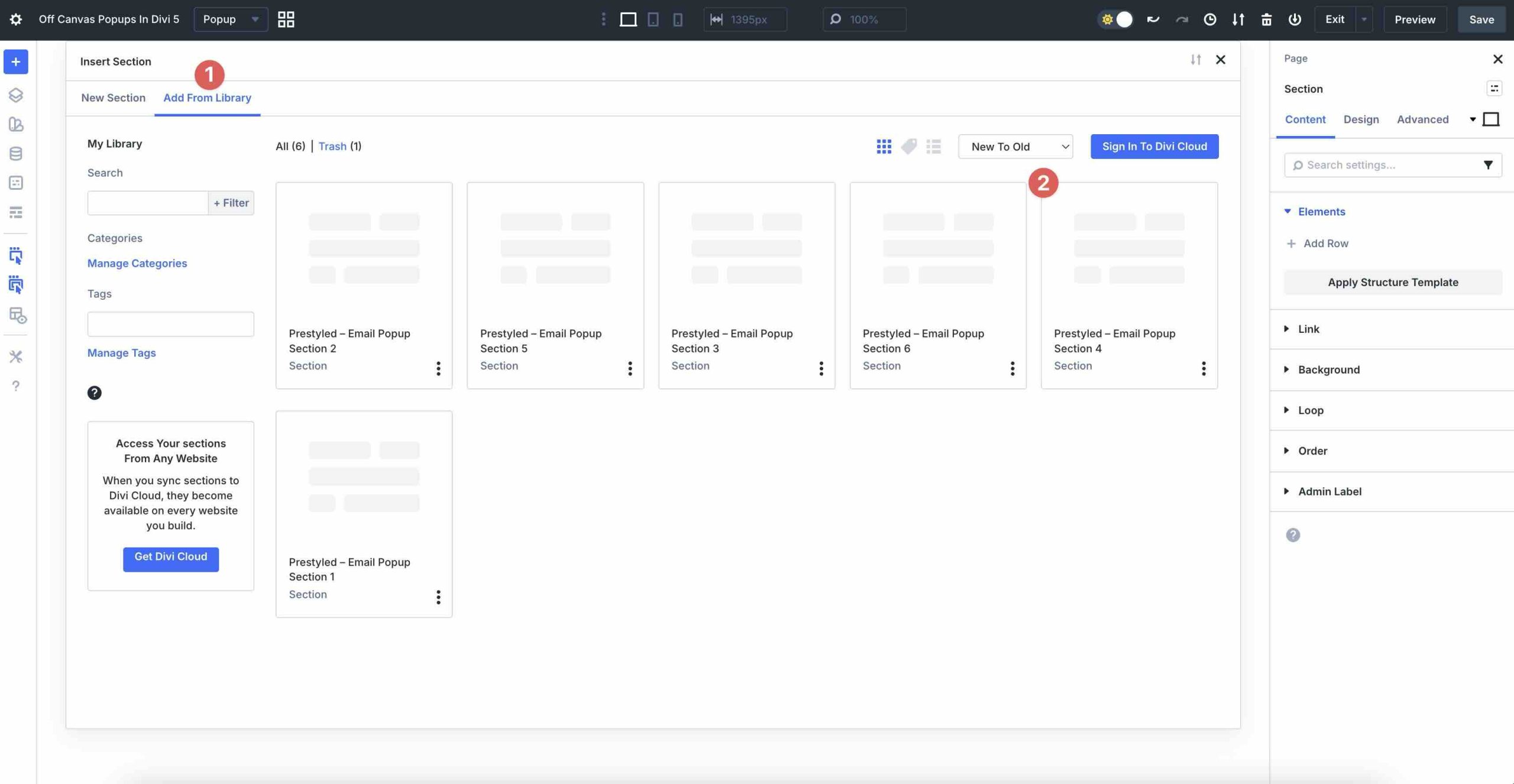
Choose a prepared layout by selecting the Add From Library tab. The Elegant Themes design team will be using an email pop-up.
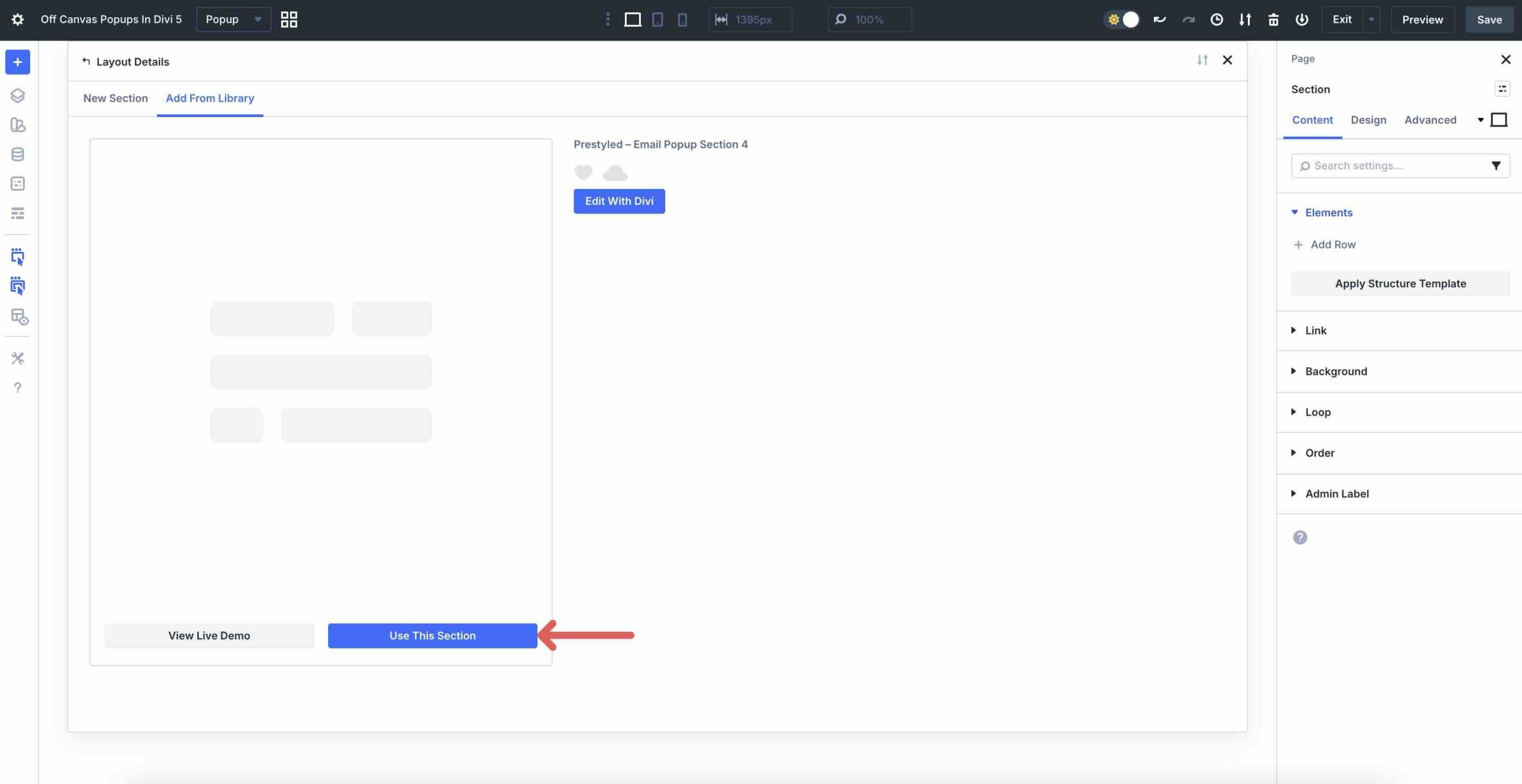
Lastly, to load the pop-up on the Canvas, click Use This Section.
Make care to save the Canvas after the layout loads.
Changing a Button module’s design settings is easy, too. Simply select a new Background Color, swap the Font, adjust the Border Radius, and more.
It is also simple to change the images. To select a new image, just enter the Image settings, select the Content tab, enlarge the Image dropdown menu, and click the Settings icon.
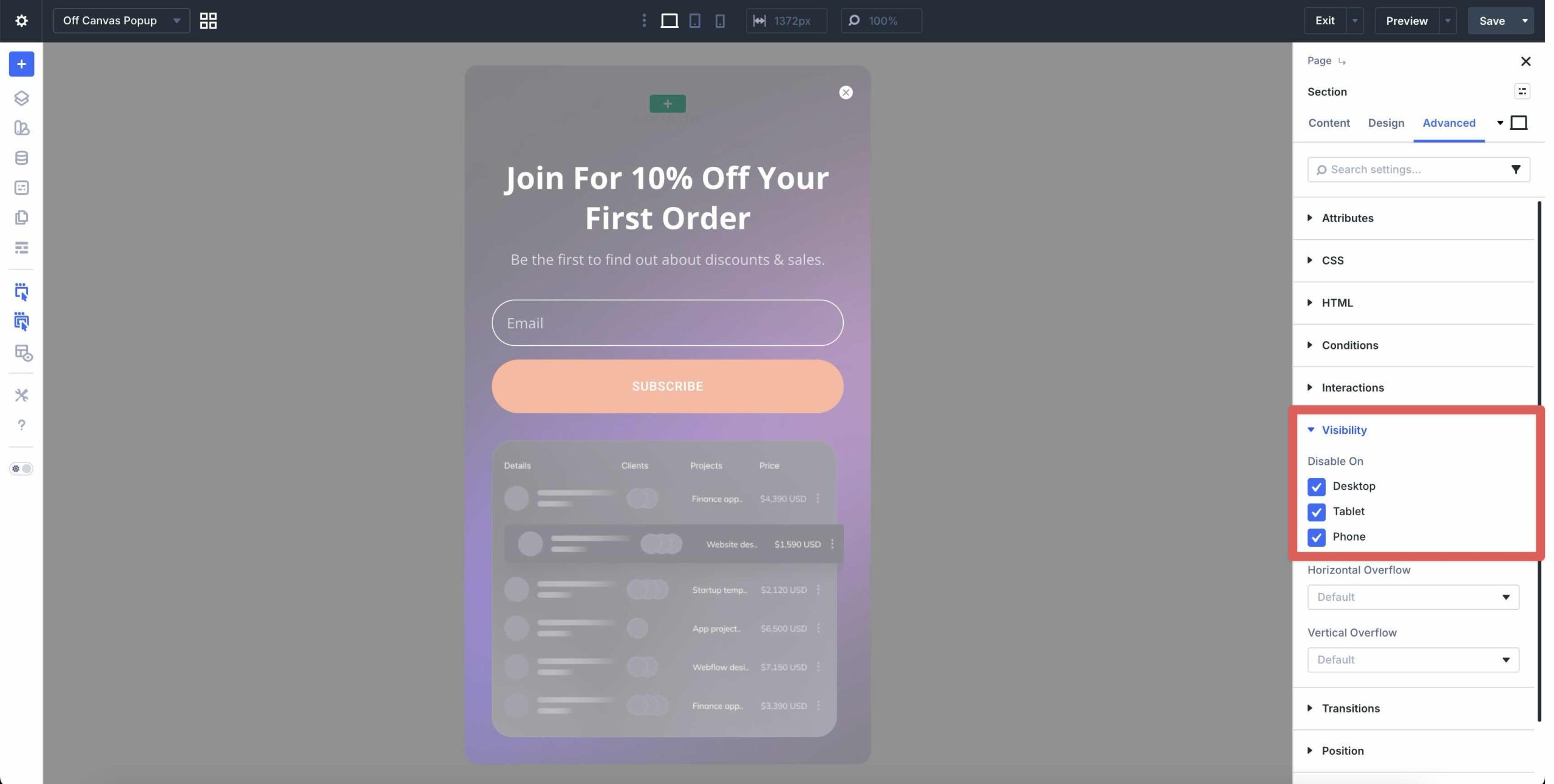
We must use Divi 5's Visibility options to make the popup invisible before returning to the Main Canvas. This will prevent the popup from appearing on the Main Canvas unless Interactions activate it. Extend the Visibility dropdown menu on the Advanced tab. On desktop, tablet, and mobile devices, click to turn off the section.
We will schedule an interaction to start it after a predetermined amount of time. It will not matter which part we utilize to activate the pop-up because it has placement already set up. To access the hero section's settings on the Main Canvas, click. Expand the Interactions menu by selecting the Advanced tab. Click the + Add Interaction button to add a new interaction.
We will include an interaction that adds five seconds to the pop-up's delay. Click on Viewport Enter.
Select Show Element as the Effect Action, the pop-up section as the Target Module, set the Time Delay to 5 seconds, and specify an Admin Label when the modal window opens.
Create a Popup-Closing Interaction The close Icon module usually has an Interaction in place when utilizing a preset popup. You will need to add a popup, though, if you are making one from scratch. Let me demonstrate how to include a third interaction in the popup. You may choose the close icon on the popup canvas.
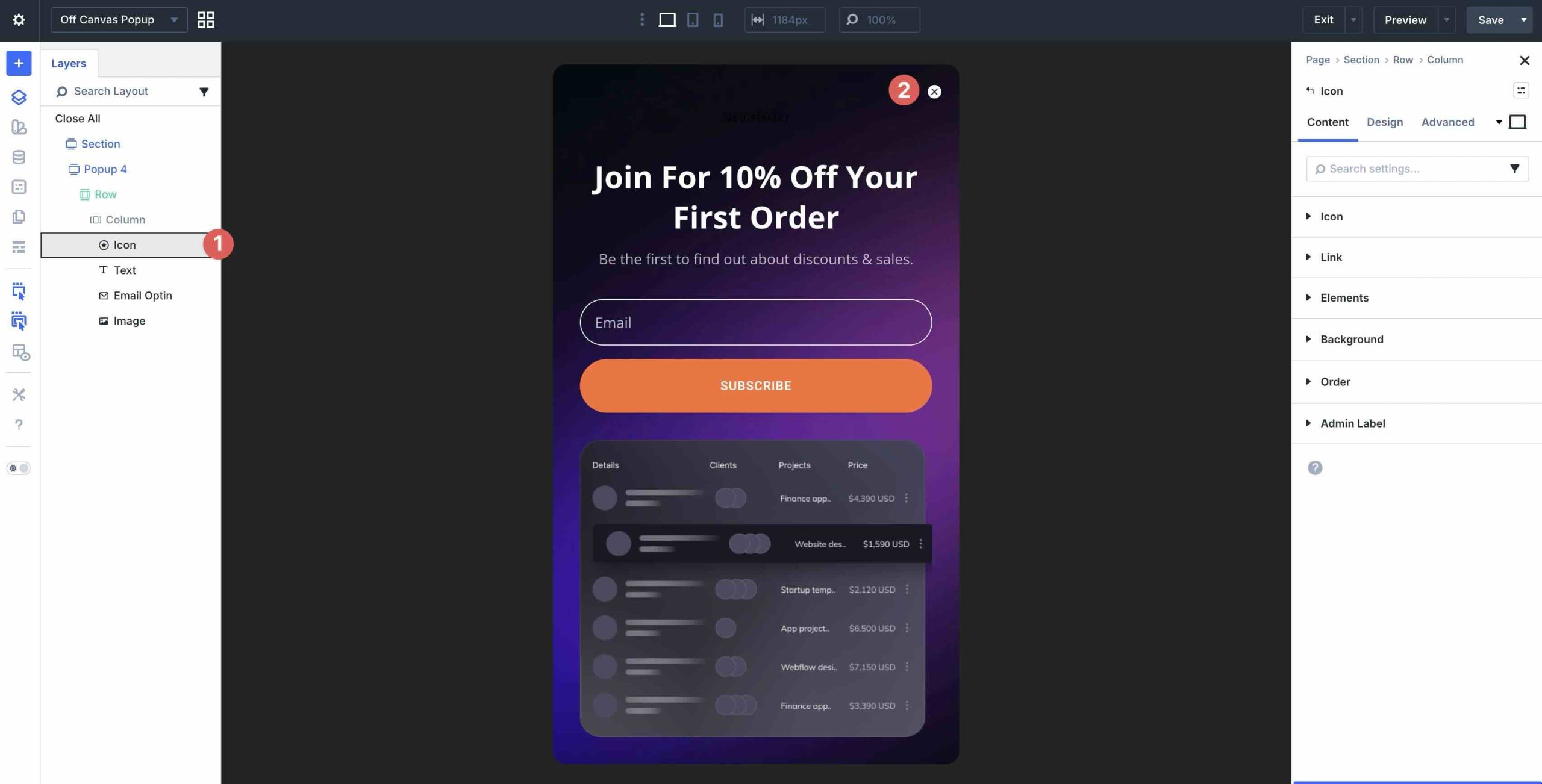
To create a new interaction, select the Advanced tab. Assign the Hide Element as the Effect Action, Click as the Trigger Event, and Close Popup as the Admin Label. Make sure the popup section is chosen as the Target Module.
Test on the front end after saving the popup canvas.
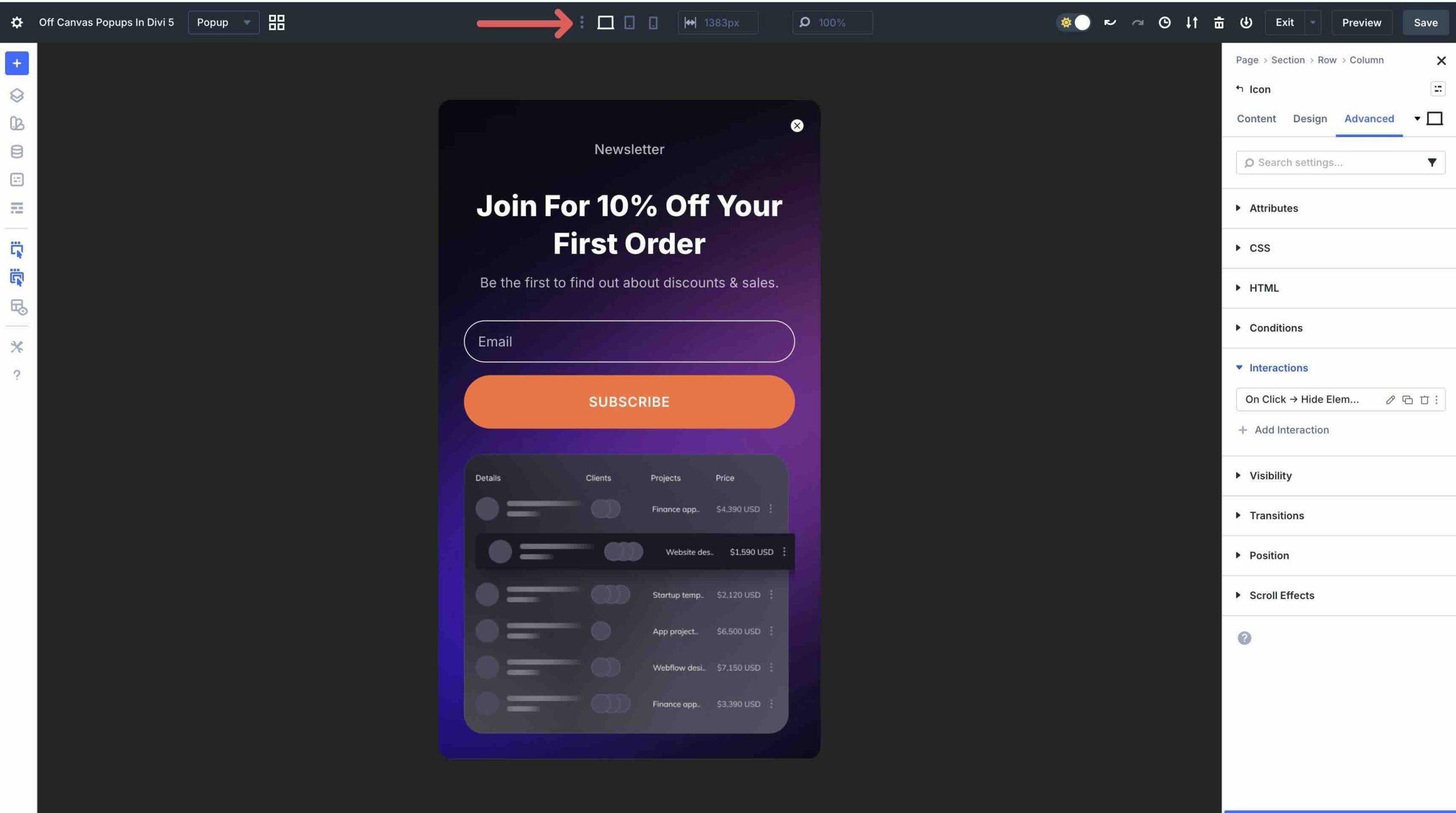
Toggle each breakpoint on when the Sitewide Responsive Breakpoints modal window opens, and then click the Save button to make them active.
Proceed through every breakpoint to make any required modifications.
As an alternative, you may modify each module separately using Divi's Responsive Editor. You may simply alter font sizes, tweak spacing, or change the close icon size with a few easy clicks.
After utilizing Divi 5 Canvases and Interactions to create a pop-up, here are some pointers to improve popups' usability, efficiency, and maintainability.
Create a pop-up in a Global Canvas rather than a local one if you want it to appear throughout your website. Every page, post, and Theme Builder template on your website has access to Global Canvases. Use Interactions to design once and have the same pop-up appear wherever. Every change you make spreads over the whole site. Compared to repeating popups on different sites, this saves time.
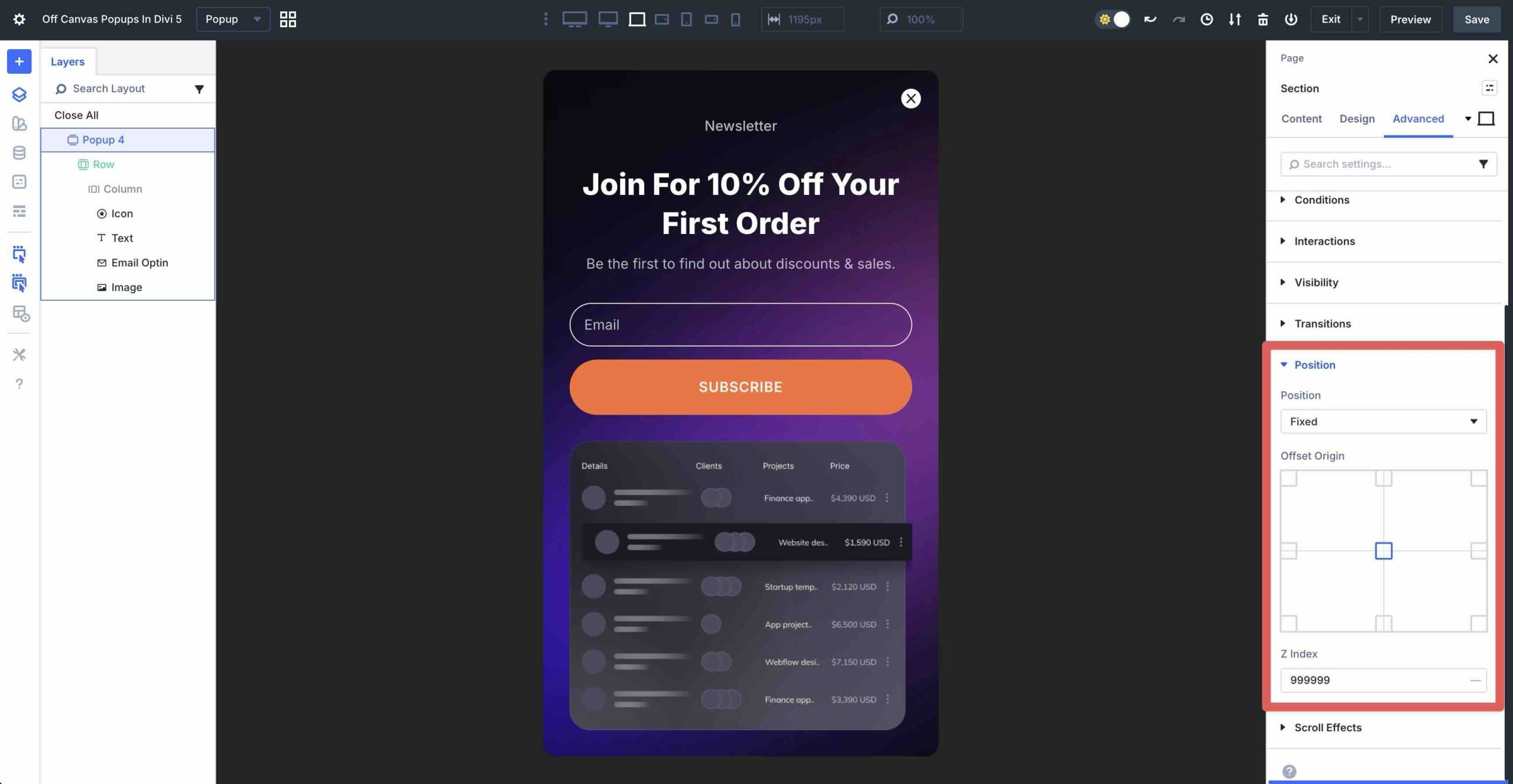
Position settings allow you more flexibility when you want a pop-up to appear in a certain location on the site, while automated front-end appending through Interactions is excellent for off-canvas popups.
In a similar vein, you may precisely position the pop-up using the Canvas Portal Module. For relative positioning, it enables you to put a detachable canvas directly within any section or row.
When you combine features inside your canvas, Divi's ecology comes to life. With the utmost flexibility, you may create intricate pop-up layouts using Nested Modules or Nested Rows. Easily create accordions, picture and text grids, and multi-column forms.
You may build reusable styles with Divi 5's Presets feature and use them throughout the entire website. Presets can even be added, removed, or toggled dynamically via interactions. For instance, to produce delicate effects, you might hover over colors, typefaces, or borders.
You may maintain consistent branding across all popups by using Global Design Variables. You can set global fonts, colors, spacing, and other elements in one location with Design Variables.On certain devices, the pop-up part can be initially hidden via visibility settings before being shown as necessary. This is helpful when creating an on-page pop-up to keep it hidden until it is activated, but it is not required when utilizing Canvases.
Get free access to all six prestyled popup sections. Drop one onto any page after importing them into your Divi Library, then use Interactions to add a trigger.
Within the Visual Builder, Divi 5 Canvases and Interactions open up a whole new universe of powerful, code-free popups. With the help of these tools, you can create stunning, intricate popups in separate, disconnected Canvases and use simple triggers to bring them to life dynamically. Faster websites, simpler upkeep, and popups that seem to be a part of your Divi design system are the outcomes. Download the most recent Divi 5 Public Beta, play around with the Canvases and Interactions, and then leave a comment with your thoughts.